18 Dec 2025
Post by Connor
HONOR Magic5 Pro includes several powerful tools that many users never turn on. Beyond the headline specs, the phone offers smart camera options, better multitasking controls, battery-saving settings, and shortcut features that can noticeably improve daily use. The key is knowing where to find them and when to use them. These ten practical tips focus on features that deliver immediate value, whether you want cleaner photos, smoother gaming, longer battery life, or faster navigation. Activate the right settings once, and the phone becomes easier to use, more efficient, and better suited to your habits without needing extra apps or complicated setup steps.
Camera Features You Should Activate
Enable AI Motion Capture for Sharp Action Shots
AI Motion Capture helps you photograph moving subjects with better timing and reduced blur. Open the Camera app, enter settings or the relevant shooting mode, and switch it on before capturing pets, children, sports, or street scenes. The feature detects motion and optimizes shutter behavior to preserve detail at the right moment. It works best in good lighting, where the camera has enough information to lock focus quickly and keep fast action looking sharp rather than soft or smeared.
Use Super Night Mode for Low-Light Clarity
Super Night Mode improves detail, brightness, and color balance when shooting after dark. Use it for city streets, indoor dinners, evening portraits, or dim travel scenes where normal photo mode may lose texture. Hold the phone steady for a moment while the camera combines multiple exposures into one cleaner image. For the best result, frame your shot first and avoid sudden movement during capture. This mode is especially useful when you want brighter highlights and less muddy shadow detail without editing later.
Unlock Smart Zoom Optimization
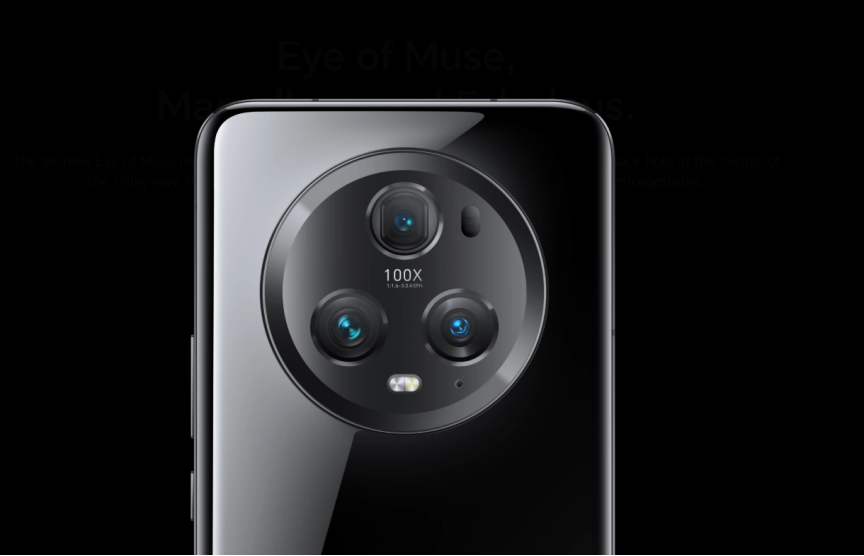
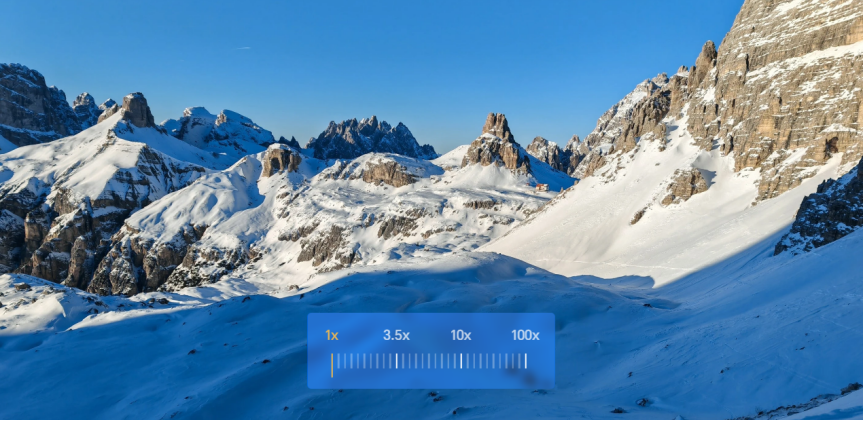
Smart Zoom Optimization helps keep distant subjects clearer by improving image processing as you zoom in. It is most useful for architecture, stage events, travel landmarks, and outdoor scenes where moving closer is not practical. The phone pairs advanced imaging with its 50MP main camera, 50MP ultra-wide camera, and 50MP periscope telephoto system to maintain stronger detail across different focal lengths. For better results, stop at a stable zoom level, hold the device with both hands, and tap to confirm focus before shooting.
Performance & System Optimization Tricks
Activate Performance Mode for Heavy Apps
Performance Mode gives the system more aggressive resource allocation for gaming, video editing, and demanding apps. You can usually find it in Battery settings. Turn it on when you need steadier frame rates, quicker app response, or smoother heavy multitasking. Because it prioritizes speed over efficiency, use it selectively rather than all day. It is ideal for short sessions where peak responsiveness matters more than battery savings, especially during gaming, large file exports, or intensive camera processing tasks.
Optimize RAM Expansion for Smoother Multitasking
RAM Expansion can help keep more apps active in the background, making app switching feel smoother. Check the memory settings and enable the feature if it is available on your software version. It uses part of the internal storage to support multitasking when physical memory is under pressure. This is helpful if you frequently jump between messaging, browser tabs, maps, and media apps. After enabling it, restart the phone so the system can apply the change cleanly and manage memory more efficiently.
Manage Background Apps for Faster Speed
Too many background apps can slow response times and drain resources without adding value. Open Battery or App management settings and review which apps are allowed to auto-launch, run in the background, or stay active after you close them. Restrict the ones you rarely need, especially shopping, social, or utility apps that constantly refresh. This frees memory, reduces unnecessary processing, and can make the system feel quicker. It also helps notifications stay relevant by letting only important apps keep priority access.
Battery Life Improvement Hacks
Use Smart Power Saving Mode
Smart Power Saving Mode is one of the easiest ways to stretch battery life without making the phone frustrating to use. It reduces background activity, limits some visual effects, and adjusts power behavior based on your usage. Turn it on when you know you will be away from a charger for long periods, such as travel days or busy work schedules. Unlike more aggressive battery restrictions, this mode keeps core functions practical while cutting unnecessary drain. Pair it with app management and lower screen brightness for even better endurance. If you want longer battery life every day, this is the first setting to enable and leave ready.
Control Refresh Rate for Energy Efficiency
The display refresh rate has a direct effect on battery consumption, especially during long sessions of browsing, streaming, and social media use. In Display settings, choose a smart or standard refresh rate instead of forcing the highest option all the time. Adaptive selection lets the system raise smoothness when needed and lower it when it is not, which saves power without making the interface feel sluggish. If battery life is your priority, switching to a lower fixed rate can extend runtime further. This is a simple adjustment, but it often delivers one of the most noticeable gains in daily efficiency.
Hidden UI & Productivity Features
Use Smart Split Screen for Multitasking
Smart Split Screen of HONOR Magic5 Pro makes the phone much more useful for work, study, and everyday organization. Use it to run two apps together, such as notes with a browser, chat with a document, or maps with messaging. Depending on your software version, you can usually trigger it from the recent apps menu or sidebar shortcuts. Once activated, drag the divider to give more space to the app you are actively using. This feature is especially helpful on a large display because both windows remain readable. If you multitask often, setting up Split Screen quickly becomes one of the most practical hidden tools.
Enable Gesture Navigation Shortcuts
Gesture Navigation Shortcuts can make the interface feel faster, cleaner, and easier to use with one hand. Instead of relying on traditional buttons, you swipe to go home, open recent apps, or return to the previous screen. Enable gestures in System Navigation settings, then spend a few minutes practicing the edge and bottom swipes until they feel natural. Once learned, they reduce screen clutter and speed up movement through menus and apps. Gesture controls are particularly useful if you switch apps often or want more visible screen space while reading, browsing, or watching content throughout the day.
Conclusion
The best HONOR Magic5 Pro tips are the ones that improve everyday use immediately, and these ten features do exactly that. AI Motion Capture, Super Night Mode, and zoom optimization help you get better photos with less effort. Performance Mode, RAM Expansion, and background app control make the system feel faster and more responsive. Smart Power Saving Mode and refresh rate control extend battery life in practical ways, while Split Screen and gesture navigation improve productivity and ease of use. You do not need to change everything at once. Start with the settings that match your habits, then fine-tune the rest over time. A few small adjustments can unlock a smoother, smarter, and more efficient experience from the phone you already own.